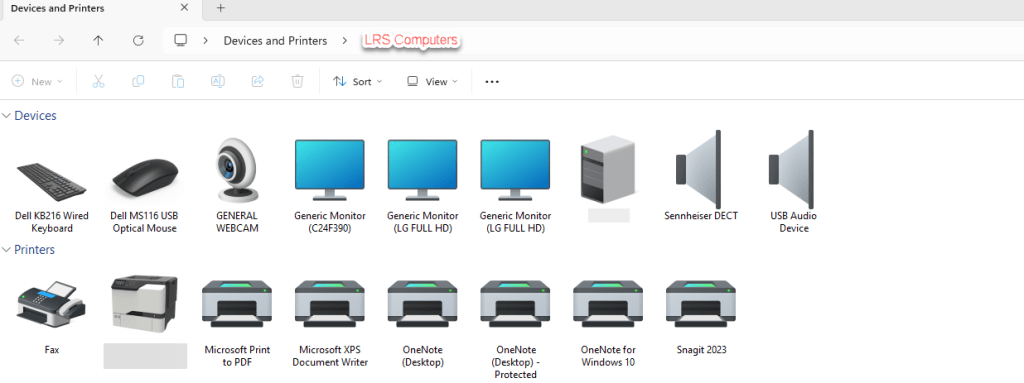
With Windows 11, we are slowly transitioning between Control Panel and Settings. However, when it comes to maintaining printers on a device, I much prefer the ‘older’ Control Panel interface.
In this post, I will show you a run dialogue on how to access the above.
There are so many benefits to using a shared mailbox over paying for a subscription. A centralised communication, not extra licensing costs, improves workflow, easier collaboration between a team / department.
If you wish to unlock some additional features, such as creating a separate email signature for this shared mailbox or receiving notifications. You need to look into turning off automapping, then add it as an additional mailbox.
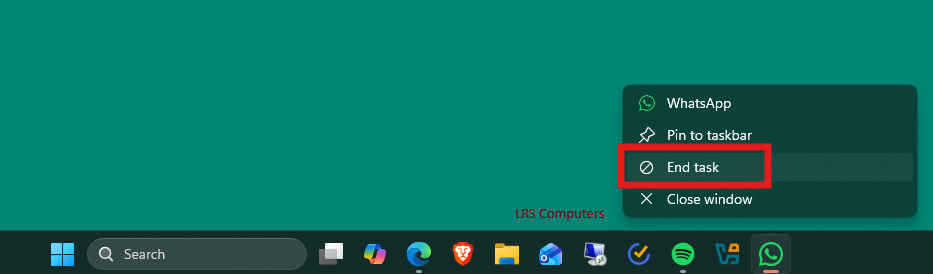
However, with New Outlook – we can now go into the settings and Convert. This means we no longer need to run PowerShell to disable automapping.
One slight annoyance with IT Technicians would be preinstalled applications on new computers – we quite often have to remove ‘free’ subscriptions to an Anti-Virus that we don’t want or remove different cloud storage programs like Dropbox.
However, the preinstalled apps from the Microsoft Store is a different annoyance. Quite often you remove these manually or via a script for them to reappear on the next restart or by a feature update. In a business environment, we don’t want to have the Xbox App.
Through Microsoft Intune – we can now create a Configuration Profile to remove these preinstalled apps.
In this post I will show you to create this configuration profile.
Please note this only works for Windows 11 Enterprise and Education 25H2.
Activating a Windows Server, should be easier than it looks. I find that when something requires a command to be ran in Command Prompt or a PowerShell Script to be triggered, it can be quite daunting to technicians.
If you don’t fully understand that command – you could be worried about the damage you may inflict.
In this post, I will show you how to activate a Windows Server (2022).


 LRS Computers