Last year, I purchased a Chromebook with the main objective of having a small, lightweight laptop that was just used for web browsing and studying. I could have easily used my main desktop computer at home; however, with a library full of games on Steam and other distractions, when I wanted to study – I never.
I read many negative things on Chromebooks, mainly that them being unpowered and unfit for purpose, but something being fit for purpose is subjective. I did purchase a Chromebook Plus, over a regular Chromebook.
The main difference is that Chromebook Plus must hit a minimum hardware requirement, such as an Intel i3, 8GB of memory, and more storage. From my understanding, a device running Plus will also receive 10 years of updates.
For me, my Chromebook does everything I need it to do, boots up instantly, and has a long battery life.
I firmly believe there is a market for ChromeOS. A market for users who don’t want to break the bank, just to use a web browser, or a student who needs access to Google Docs.
So, what is ChromeOS Flex?
With the impending end-of-life date for Windows 10 approaching, we will find ourselves with a lot of old hardware heading straight to the recycling heap.
We can now take these devices and install a lightweight version of ChromeOS, called ChromeOS Flex. Google have created a list of certified models. Their list;
“To ensure a consistent and high-quality experience, Google individually certifies and maintains a list of models that you can use with ChromeOS Flex.“
Google’s List – Click Here!
Please note, you can install it on devices that aren’t on the list above, but you might find that things don’t work on it, such as the built-in webcam.
The only negative on ChromeOS Flex so far is that it doesn’t include the Play Store.
How to install ChromeOS Flex?
Very much like Windows, we need a USB to create the installer, and we also need Google Chrome.
YOU NEED TO BE A LOCAL ADMIN TO CREATE THIS.
Within Google Chrome, head to Web Store to install new extensions, and the extension we want is Chromebook Recovery Utility;
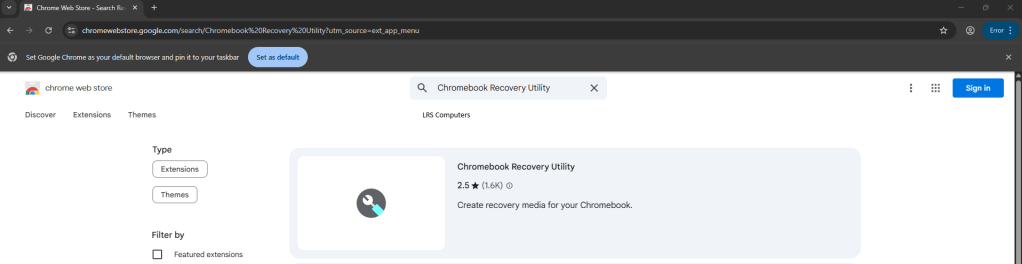
Click on Chromebook Recovery Utility > Add to Chrome. Then click on the extension.
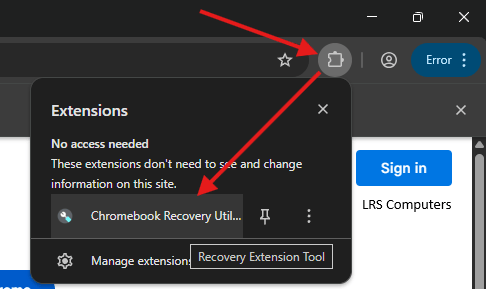
And it will load the recovery tool.
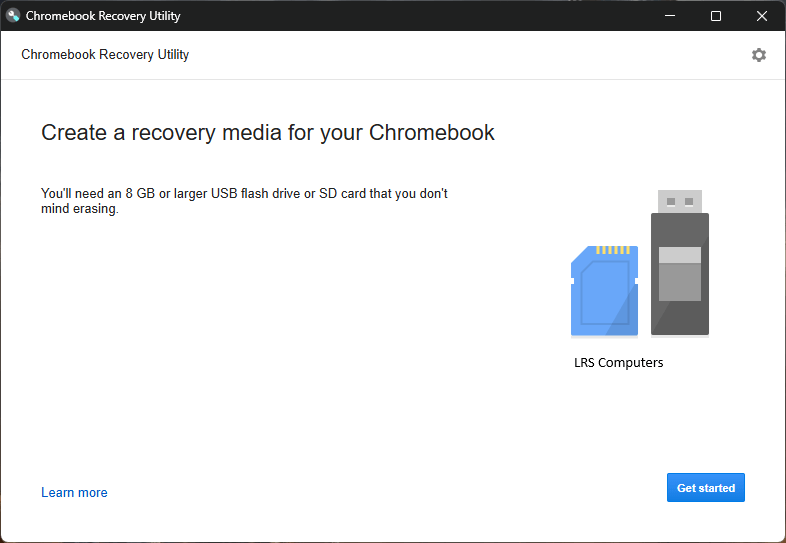
Get started > Select a model from a list.
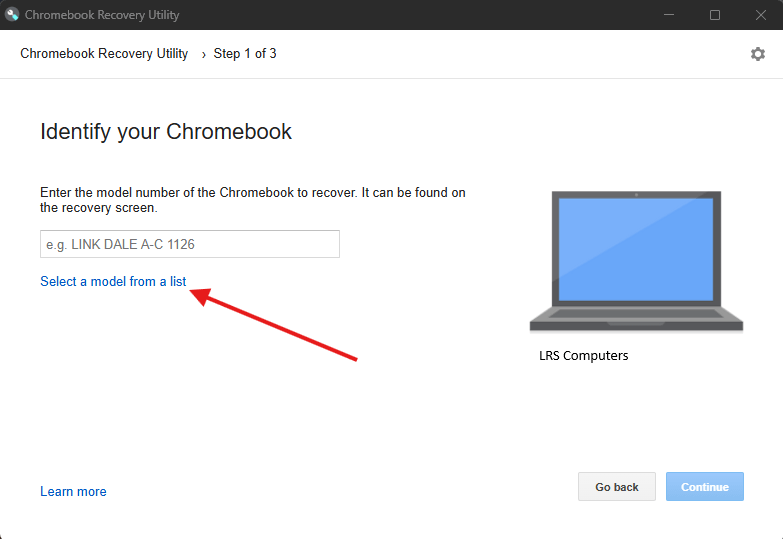
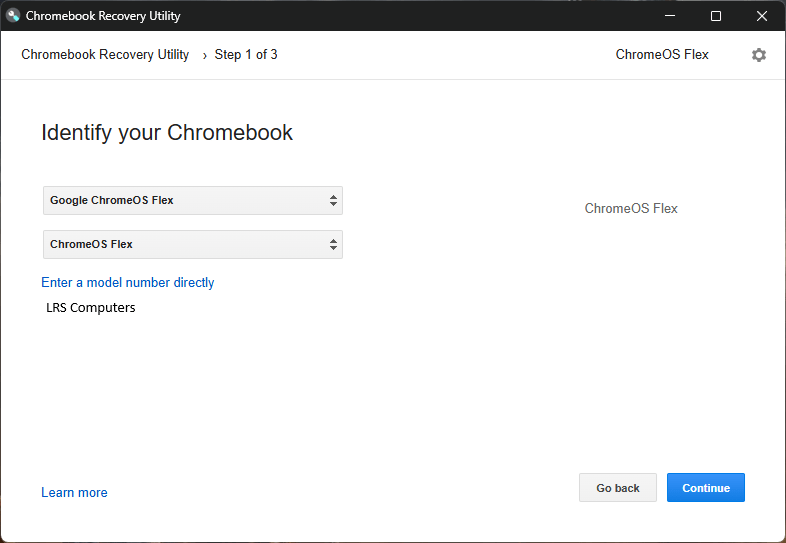
Select Google ChromeOS Flex > ChromeOS Flex > Continue
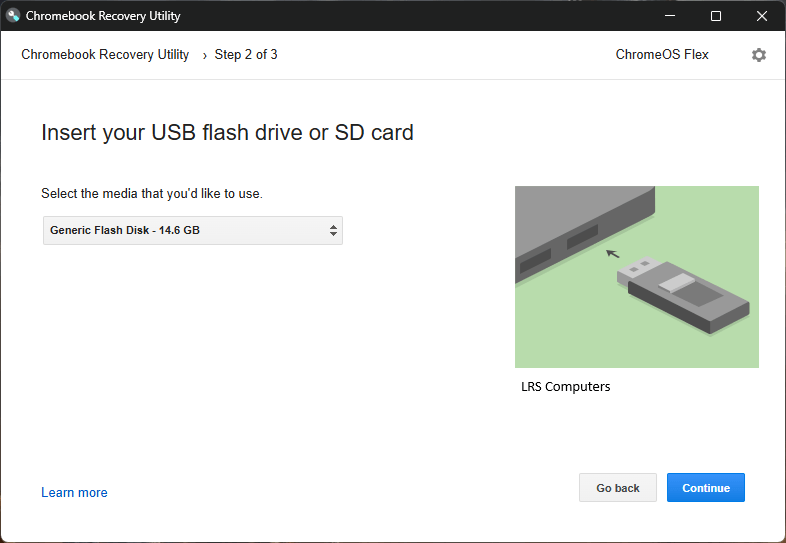
Select your USB Memory stick > Continue.
Please note – all the data on your USB stick will be lost during this process > Create now.
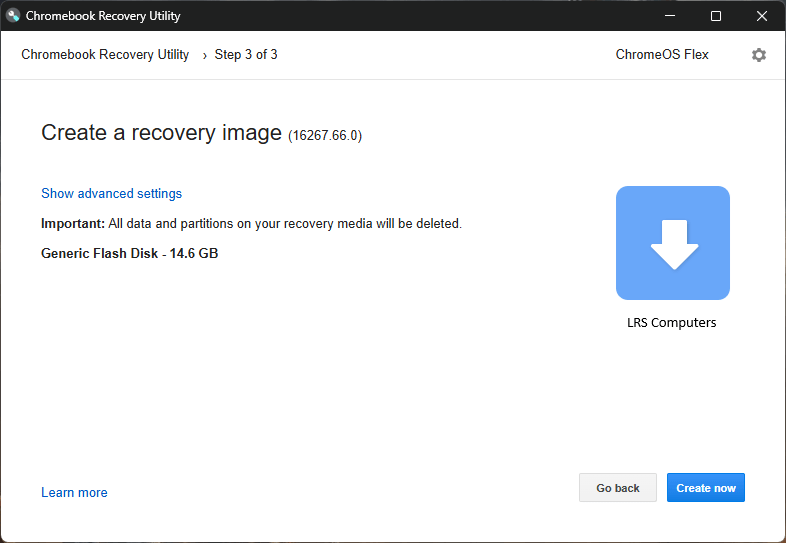
Then wait for the recovery tool to finish. This can take 10-20 minutes to complete.
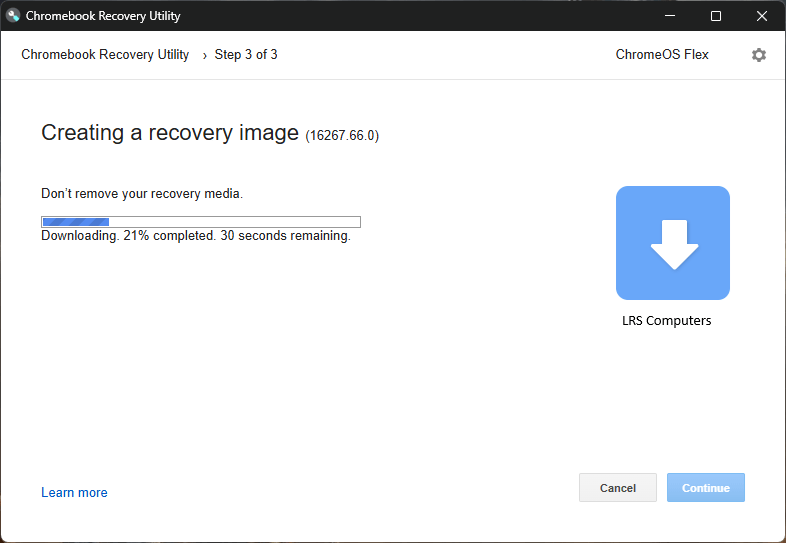
Completed.
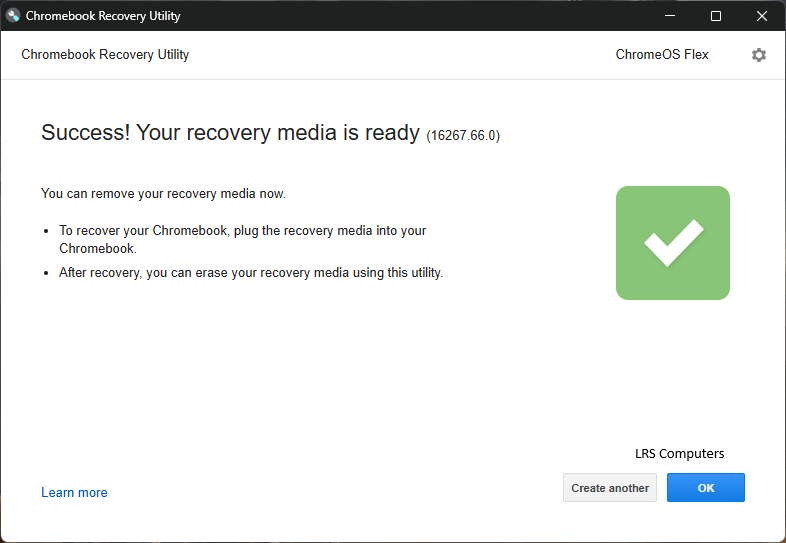
Now you’ve got a USB with ChromeOS Flex on there, you are ready to start installing on your old laptops. When you insert the USB stick, you will need to either find the One Time Boot Menu or in the BIOS, change the Boot Order, so the USB stick is on top.
 LRS Computers