

Intune – Remove Default Microsoft Store Apps

One slight annoyance with IT Technicians would be preinstalled applications on new computers – we quite often have to remove ‘free’ subscriptions to an Anti-Virus that we don’t want or remove different cloud storage programs like Dropbox.

However, the preinstalled apps from the Microsoft Store is a different annoyance. Quite often you remove these manually or via a script for them to reappear on the next restart or by a feature update. In a business environment, we don’t want to have the Xbox App.

Through Microsoft Intune – we can now create a Configuration Profile to remove these preinstalled apps.

In this post I will show you to create this configuration profile.

Please note this only works for Windows 11 Enterprise and Education 25H2.

Read More »
Anti-Virus Expired?

There’s been an argument online about whether paid anti-virus software is still required in the modern age of computing.

Growing up with computers in the late 1990s and early 2000s, there was a need for anti-virus software; we also needed anti-spyware tools to feel protected when accessing the internet. However, there is an argument now that states just using Defender (Microsoft’s own AV solution) is enough.

If you choose whether to use a paid anti-virus or not is totally down to you.

But we still need to look out for scams – we still see a bombardment of notifications claiming that your anti-virus solution has expired. Such as;

Is the above a genuine prompt from Norton? In this post, I will explain on why it isn’t.

Read More »

Intune – How to start pushing out Defender for Endpoint on Windows Devices automatically?

All Windows devices come with their own anti-virus – Windows Defender, but what is Defender For Endpoint, and how do we start pushing it out to our corporate devices?

Microsoft Defender for Endpoint is an enterprise-level security platform designed to help businesses prevent, detect, investigate, and respond to advanced cyber threats on their devices (also known as “endpoints” — like computers, laptops, and mobile devices).

Key Features:

  1. Threat Protection – Detects and blocks malware, ransomware, and other types of cyberattacks.
  2. Endpoint Detection and Response (EDR) – Monitors activities on devices to spot suspicious behavior and helps investigate attacks.
  3. Attack Surface Reduction – Limits the ways attackers can get into systems (e.g., controlling app behavior or blocking malicious websites).
  4. Automated Investigation and Response – Uses AI to analyze threats and take action without needing manual input every time.
  5. Threat Intelligence – Uses data from Microsoft’s global threat database to identify new and emerging threats.

It’s like a smart security system for all company devices — watching for problems, alerting IT teams, and even taking action automatically to keep everything safe.

Providing you have the correct licenses, this post will show you how I push out Defender for Endpoint with devices enrolled into Intune.

Read More »

Windows 11 – Encrypt with Bitlocker and PIN

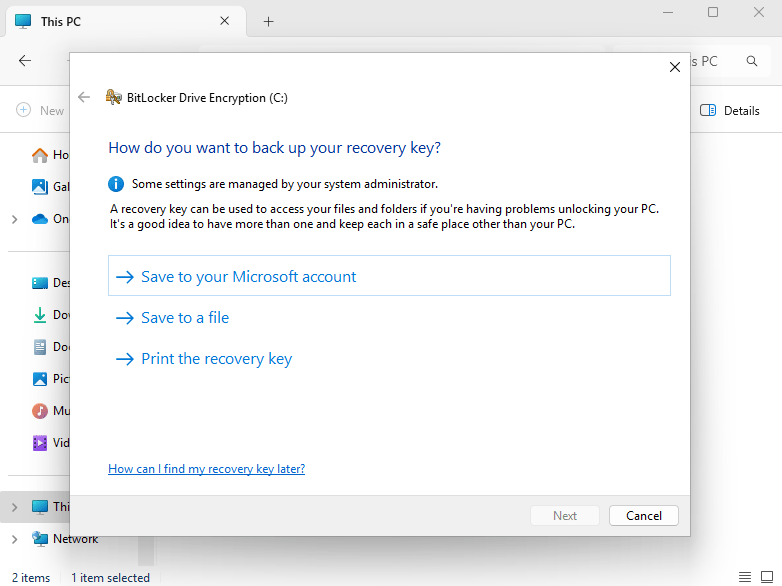
With many forms of industry standards and cybersecurity guidelines, you will see how important it is to encrypt your data. You may password protect your Windows device, but if it stolen – all it takes is someone to remove the drive, plug it into a HDD caddy, and they will have access to your data. Windows comes with its own version of encryption called BitLocker. Once BitLocker has been enabled, the data on that drive is encrypted.

However, is the standard out-of-the-box version of BitLocker secure enough? I’m going to show you how to encrypt your data with a PIN, meaning you can only get into Windows knowing the BitLocker PIN. Please note that you need to be running a Pro version of Windows to enable this setting.

Read More »