
In a dream world of IT, every device is managed, protected, encrypted and follows a Configuration Profile. However, we often come across clients, normally on the smaller side, who want their end users to be able to work on their own personal device. You can quite easily stipulate a BYOD Policy, but very often, they are simple and state, the device must have anti-virus, the device must have encryption and they must be up to date – they sign the Policy and no checks on the device itself have been carried out.
Below I’m going to go through the steps, that is put in place to limit access to the Web Apps only and prevent them from downloading files on their device and prevent them from signing into the Desktop Apps too.
Please note, to action these, you need Conditional Access, which is ‘locked’ behind a Microsoft Subscription. Having a Subscription such as Business Premium allows for Conditional Access.

- Limit Access on Exchange Online – Read Only
- Restrict Signing Into the Desktop Apps
- Restrict SharePoint Downloads
- Customise to fit your needs
In total, we are looking at creating 3 Conditional Access policies;
- Outlook on the Web (Read Only)
- Restrict Desktop Applications on Personal (Unmanaged) Devices
- Restrict SharePoint Downloads
I prefer working within Security Groups too, the reason being if something goes wrong – you simply remove the user from the Security Group and they are no-longer bound by that Conditional Access.
Limit Access on Exchange Online – Read Only
The first Conditional Access we want to create will involve using a PowerShell script. Connect to your M365 Tenant via PowerShell and post in the following command.
Set-OwaMailboxPolicy -Identity OwaMailboxPolicy-Default -ConditionalAccessPolicy ReadOnly
Once the PowerShell command has been ran, head over to your M365 Admin Portal and go into the Entra / Identity area (entra.microsoft.com). Once there, go to Protection > Conditional Access > Policies > Create a New Policy.
Name: CA – Outlook on the Web (Read Only)
Assignment – Users;
Include: Add who you want this to affect.
Exclude: For peace of mind, add your Global Admin account.
Assignment – Target Resources;
Include: Select Resources > Select > Office 365 Exchange Online.
Exclude: None.
Assignment – Network;
Configured: No.
Assignment – Conditions;
Device Platforms: Any
Locations: Not Configured.
Client Apps: Not Configured.
Filter for Devices: Not Configured.
Authentication Flows: Not Configured.
Access Controls – Grant;
Grant: 0 Controls Selected
Access Controls – Session;
Use app enforced restrictions.
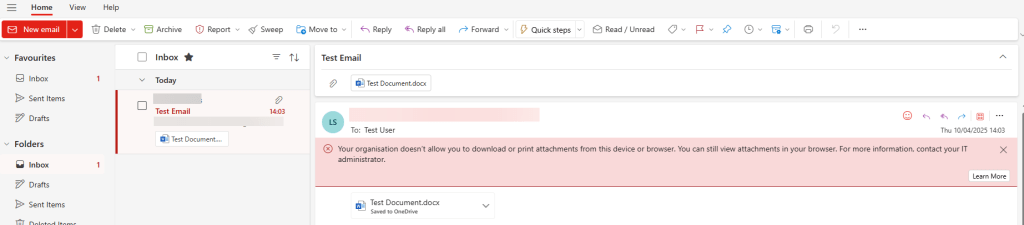
Head over to Outlook on the Web, and sign in – when they see an email with an attachment, they will get the following warning;
Restrict Signing Into the Desktop Apps
Now that we’ve limited their Outlook on the Web sessions, we want to block them from signing into the Desktop Apps. If we don’t restrict, then they can simply sign into the Office Apps and download files onto their device. Let’s create another Conditional Access Policy.
Name: CA – Restrict Desktop Applications on Personal Devices
Assignment – Users;
Include: Add who you want this to affect.
Exclude: For peace of mind, add your Global Admin account.
Assignment – Target Resources;
Include: Select Resources > Select > Office 365 Exchange Online and Office 365.
Exclude: None.
Assignment – Network;
Configured: No.
Assignment – Conditions;
Device Platforms: Any
Locations: Not Configured.
Client Apps: Mobile apps and desktop clients.
Filter for Devices: Not Configured.
Authentication Flows: Not Configured.
Access Controls – Grant;
Require device to be marked as compliant.
Access Controls – Session;
0 Controls Selected
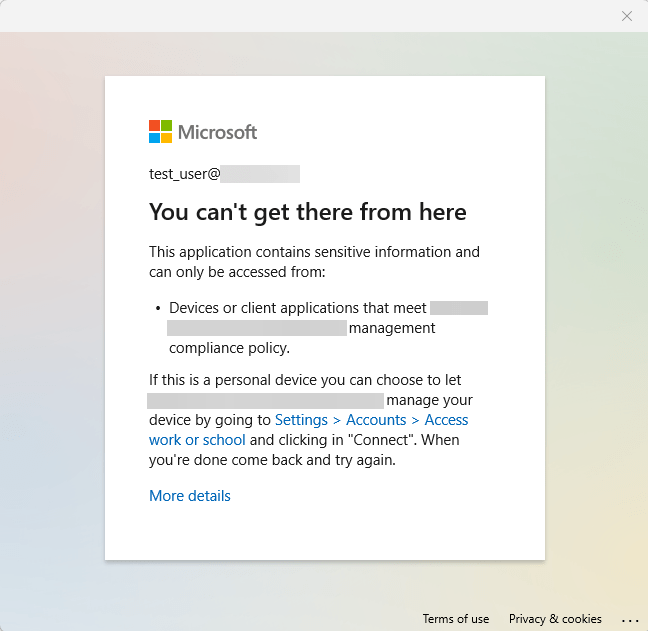
The above policy states, if the device is not compliant then don’t allow access to the Desktop Apps. If they attempt, they get the following message;
Restrict SharePoint Downloads
Currently, as it stands, an email comes in with an attachment, it gets saved to OneDrive. They can just open OneDrive on the Web and download that file. We now need to restrict that. That’s create that final policy.
*IMPORTANT* You will need a license for Microsoft Defender for Cloud Apps or a subscription with this included.
Name: CA – Restrict SharePoint Downloads
Assignment – Users;
Include: Add who you want this to affect.
Exclude: For peace of mind, add your Global Admin account.
Assignment – Target Resources;
Include: Select Resources > Select > Office 365 SharePoint Online
Exclude: None.
Assignment – Network;
Configured: No.
Assignment – Conditions;
Device Platforms: Any
Locations: Not Configured.
Client Apps: Browser.
Filter for Devices: Not Configured.
Authentication Flows: Not Configured.
Access Controls – Grant;
0 Controls Selected
Access Controls – Session;
Use Conditional Access App Control > Block Downloads.
*Please note* – this policy can take 24 hours to become active.
User Experience
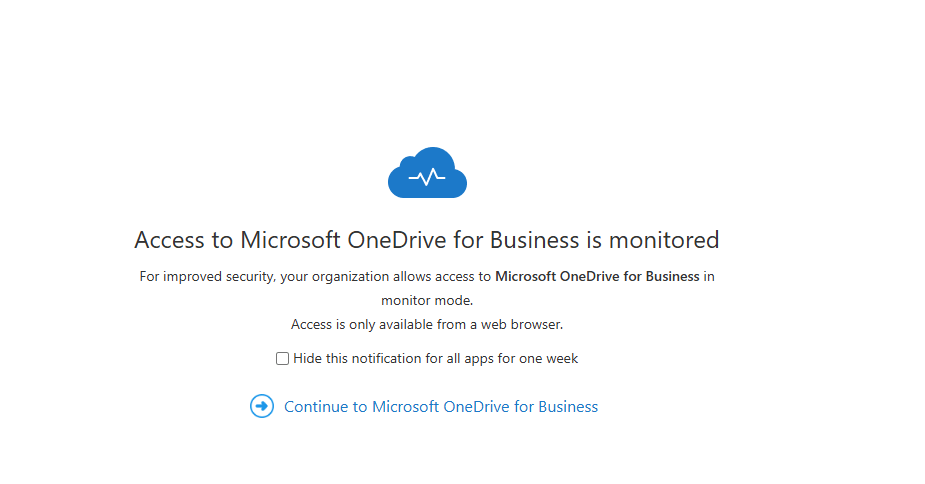
Next time they log into OneDrive, they will be greeted by;
The Download option is still available;

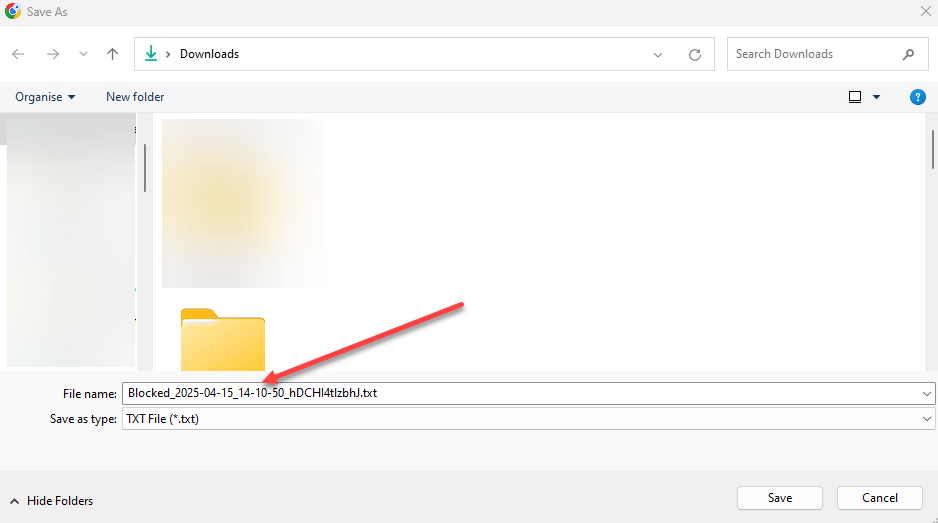
However, when they click on the Download button, they will get blocked;

File Explorer will load will Save As, but it the filename will being with Blocked;
Customise to fit your needs
You may find you wish to allow these users to access and download on iOS, for example. If so, adjust the above to fit your needs, if you want iOS ability under Assignment > Conditions > Device Platform > Exclude > iOS.
You may wish to only Grant Access if they perform MFA, under Access Controls > Grant > Require multifactor authentication.
The above is a proposed template.
 LRS Computers