
With many forms of industry standards and cybersecurity guidelines, you will see how important it is to encrypt your data. You may password protect your Windows device, but if it stolen – all it takes is someone to remove the drive, plug it into a HDD caddy, and they will have access to your data. Windows comes with its own version of encryption called BitLocker. Once BitLocker has been enabled, the data on that drive is encrypted.
However, is the standard out-of-the-box version of BitLocker secure enough? I’m going to show you how to encrypt your data with a PIN, meaning you can only get into Windows knowing the BitLocker PIN. Please note that you need to be running a Pro version of Windows to enable this setting.
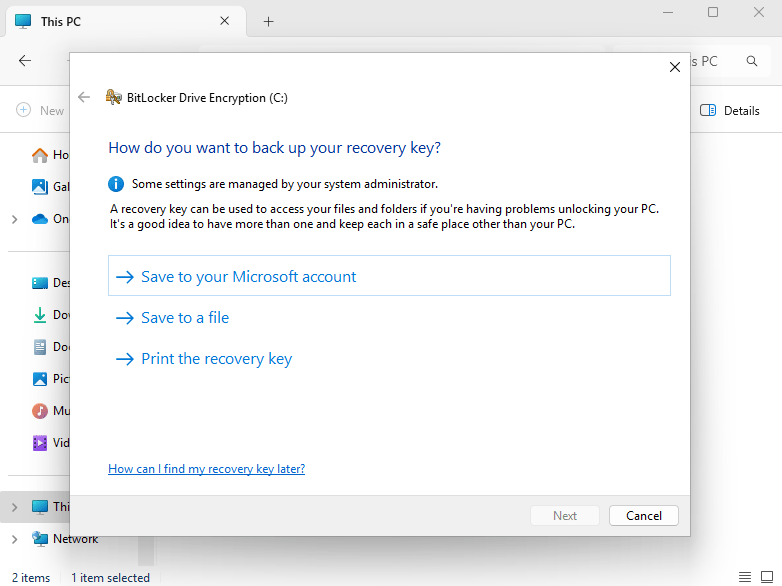
Follow these steps below.
Search for gpedit.msc and run as administrator;
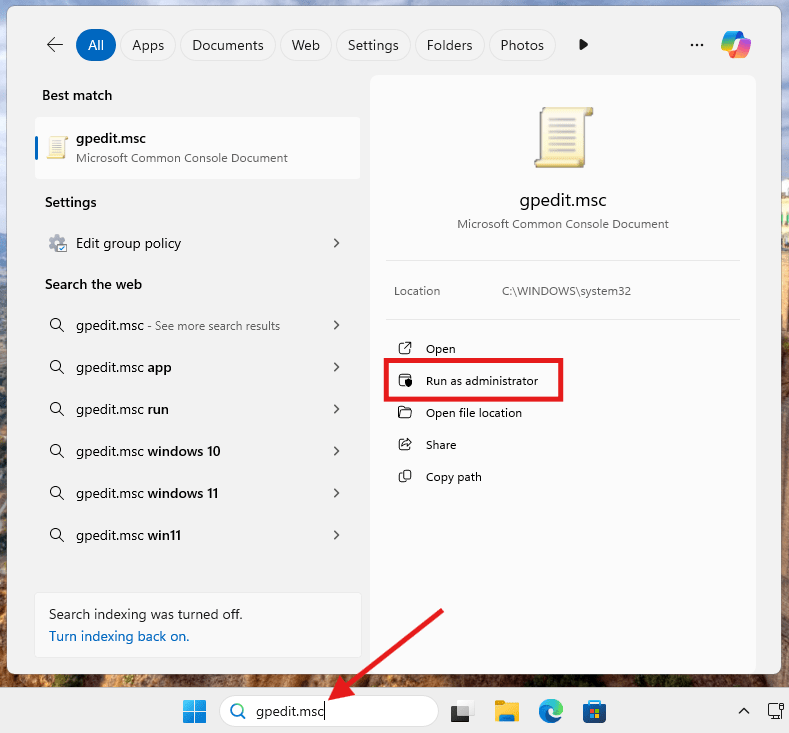
We then need to go to Computer Configuration > Administrative Templates > Windows Components > BitLocker Drive Encryption > Operating System Drives and we need to configure the following three;
- Require additional authentication at startup
- Enable use of BitLocker authentication requiring reboot keyboard input on slates
- Allow enhanced PINs for startup

Require additional authentication at startup > Enable > Apply > Ok.

Enable use of BitLocker authentication requiring reboot keyboard input on slates > Enable > Apply > OK.

Allow enhanced PINs for startup > Enable > Apply > Ok.
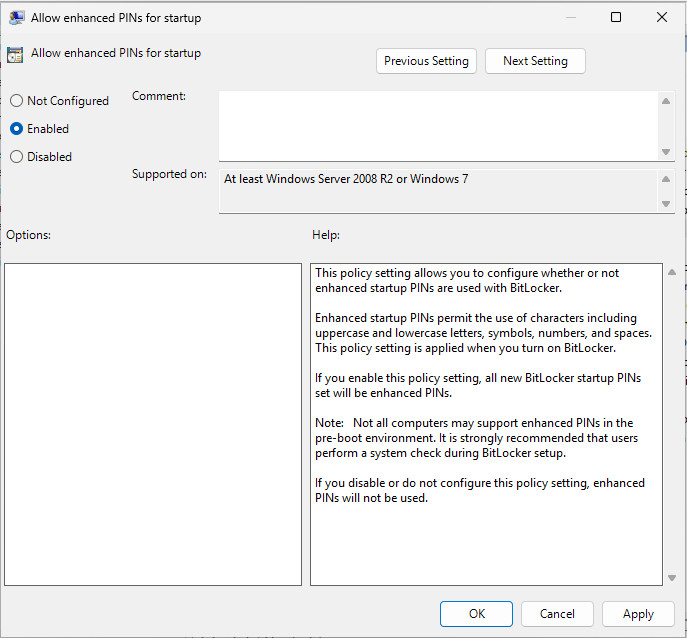
They should all now be classed as ‘Enabled’ state.

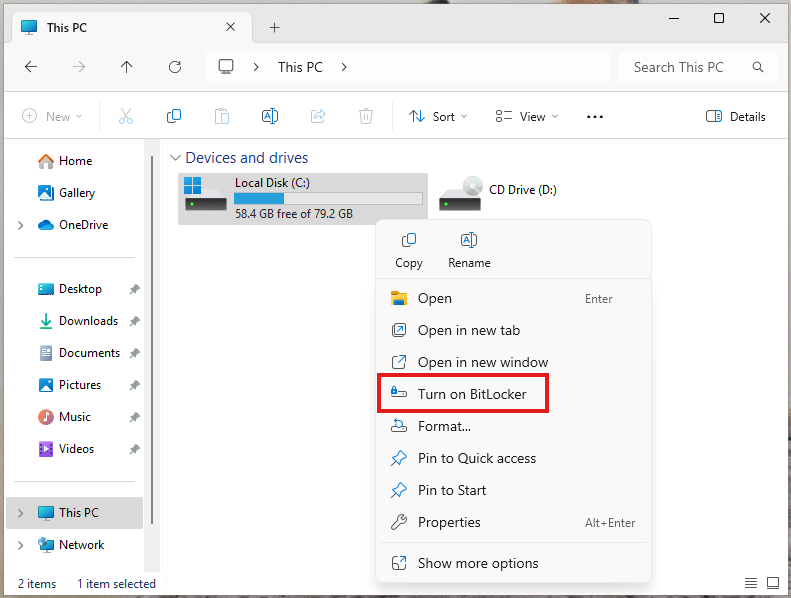
Open up File Explorer > This PC > Right-click on your C Drive > Turn on BitLocker.
Unlike the screenshot at the very top, we now get the option to Enter a PIN (recommended).

Create your chosen PIN, it can contain any characters and symbol you wish, but please note BitLocker use the US Keyboard layout. If you are in the UK, and your PIN contains ‘@’ that symbol relocates to the number 2 key during the unlock phase.

Once you set your PIN, we now need to choose how to protect our recovery key. A recovery key is a unique string of characters that only works on this device. If you ever forget your BitLocker PIN, you can use this recovery key instead.

Once you saved or printed your recovery key – we can now activate BitLocker.

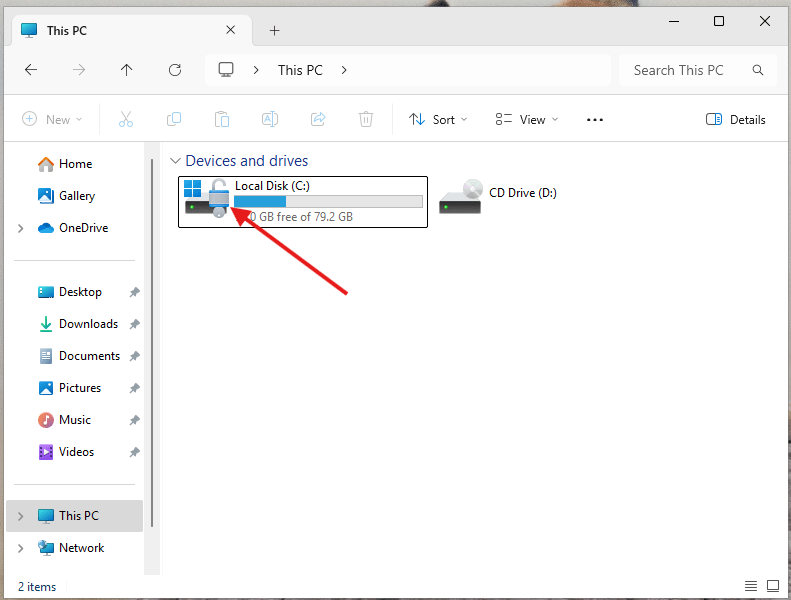
Back in File Explorer > This PC > your C Drive now is encrypted, as seen by the padlock.
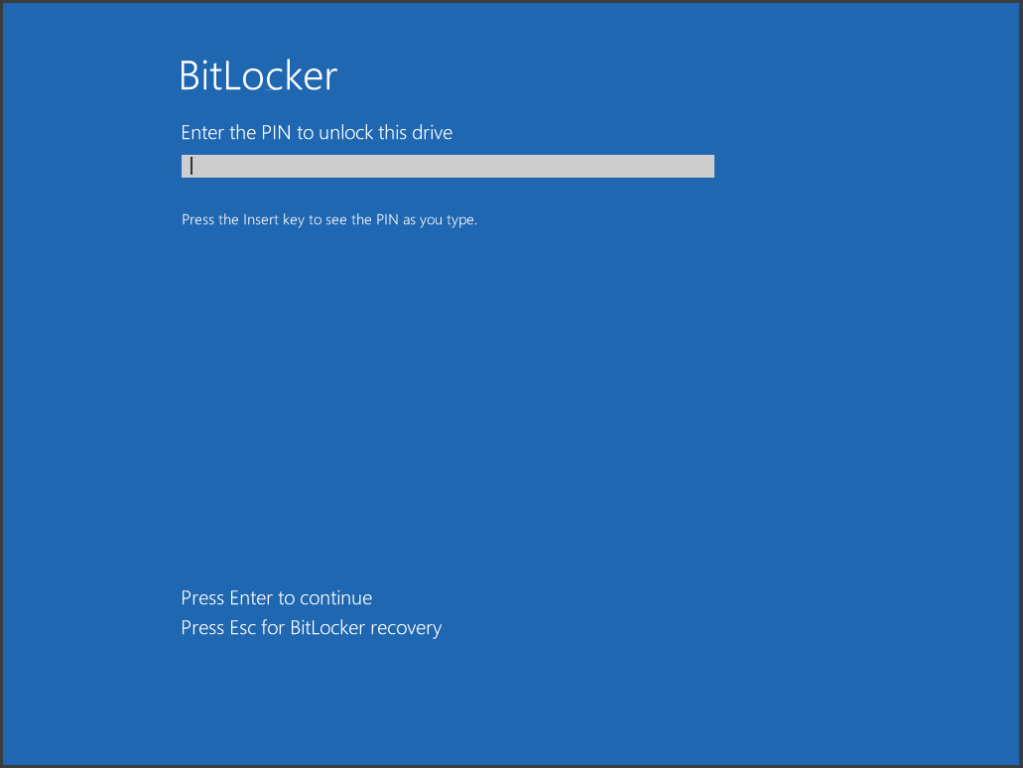
Next time you restart your device, turn it off and on – you will be prompted by BitLocker to ‘decrypt’ your drive, allowing you to boot into Windows. This is the screen that appears;
 LRS Computers