
One of the luxuries of using Azure AD and Intune, is that staff can pick up a laptop or sit at a desk and start using an enrolled device.
Once they sign in using their Microsoft 365 account, policies, applications automatically get pushed out – open Outlook, it signs you in, emails start populating, and they can continue like normal. However, we do find staff not utilising OneDrive.
With your Microsoft 365 account (depending on the license), you are granted 1TB of storage, which we find more than enough for the average office user. When you sign into OneDrive on a device, you can ‘backup’ the following locations Desktop, Documents and Pictures.
I use the term backup loosely, as OneDrive is not a backup solution.
Once those locations are ‘backed up’, the data will follow you from device to device – providing the end user signs into OneDrive on a new device. However, why create a step for yourself or the end user when we can automate it with Intune.
In this post, I will share an Intune Configuration to help you achieve the above.

Firstly, head over to your Intune Admin Portal – intune.microsoft.com > go to Devices > Windows > Configuration.
Create > New Policy > Windows 10 and later > Settings catalog > Create;
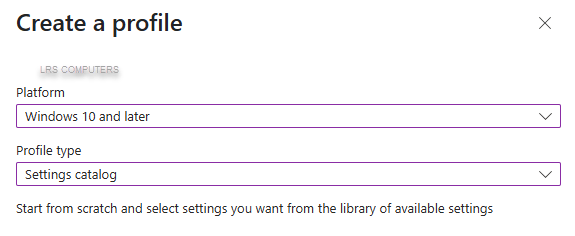
Give your new configuration policy a good, obvious name, for example, OneDrive – Auto Sign-in & Sync.
Under Configuration settings, click on Add settings and search for OneDrive;
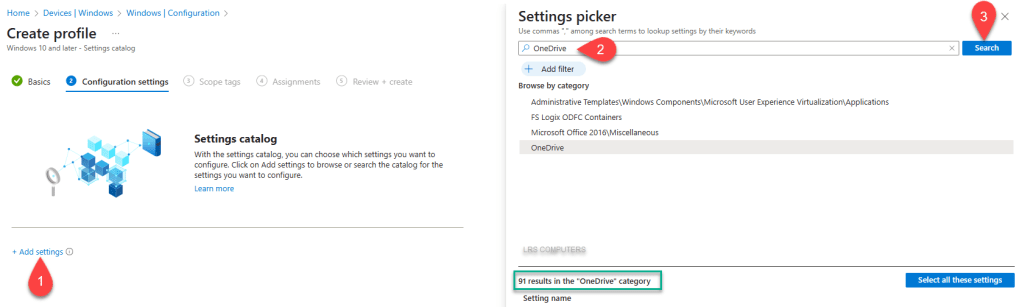
At the time of writing this, it shows 91 results… at minimum, we want to select these three settings;
- Silently move Windows known folders to OneDrive
- Silently move Windows known folders to OneDrive
- Silently sign in users to the OneDrive sync app with their Windows credentials
Silently move Windows known folders to OneDrive
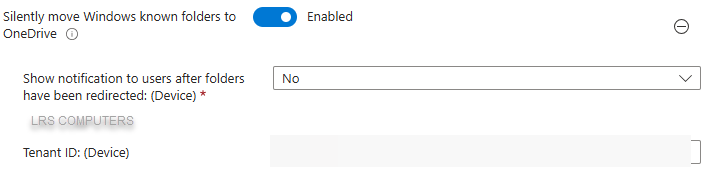
There are in fact two settings with the same name, and I’ve found it requires both… for the first, enable and insert your tenant ID;
And for the second, turn on which known folders you want ‘backing up’ and insert tenant ID;
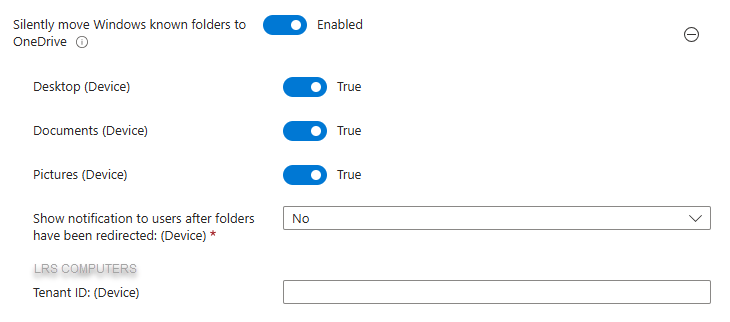
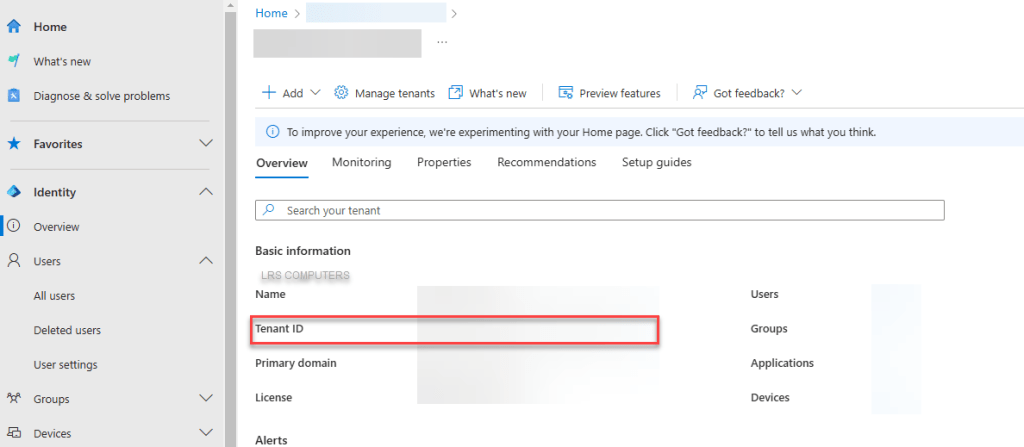
For you tenant ID, go to the Identity / Entra Portal – entra.microsoft.com and on the homepage, it should show your tenant ID;
Now, you can turn on Show notification to users after folders have been redirected, however we have found that you start getting calls and tickets about the notifications.
Silently sign in users to the OneDrive sync app with their Windows credentials
Find this setting > check the box > enable;

There are other settings within this section you can enable too, for example – we quite like preventing users from signing into their personal OneDrive accounts or enable prevent users from redirecting their Windows known folders to their PC, to stop users from turning off OneDrive.
Once you have finished with the settings, go to Next.
I leave Scope Tags on the default, so go Next.
Under Assignments, select whether you want to assign this to everyone, maybe a security group, maybe a test group – this depends on how your current set up is.
Under Review + Create, double-check you’re happy with the set up, and then push the create button.
Your new OneDrive policy should now slowly push out to your end users.
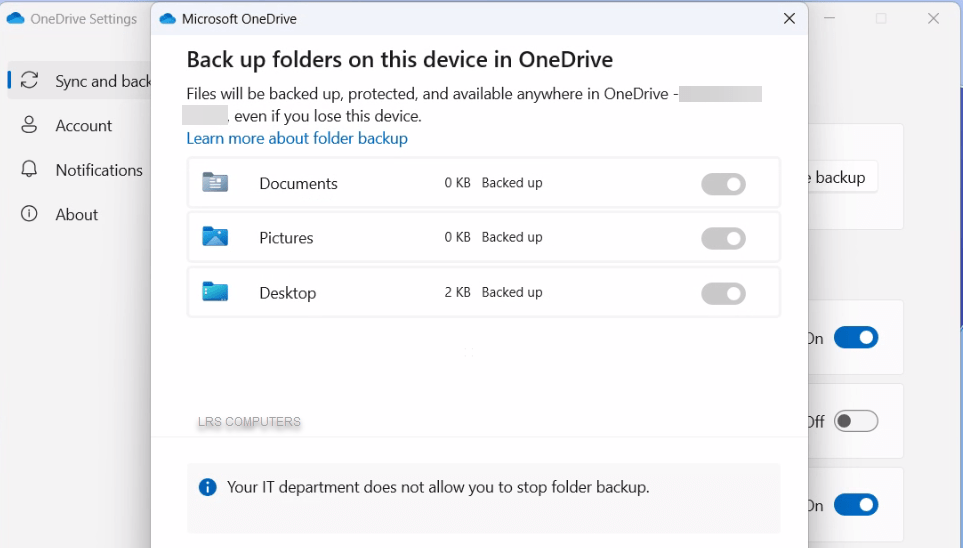
For us, we also enable Prevent users from redirecting their Windows known folders to their PC, meaning when we go on someone’s machine and into OneDrive, they can’t turn off the ‘backup’, as the toggles are greyed out and are prompted by Your IT department does not allow you to stop folder backup;
If you have any queries, please leave a comment.
 LRS Computers