
One slight annoyance with IT Technicians would be preinstalled applications on new computers – we quite often have to remove ‘free’ subscriptions to an Anti-Virus that we don’t want or remove different cloud storage programs like Dropbox.
However, the preinstalled apps from the Microsoft Store is a different annoyance. Quite often you remove these manually or via a script for them to reappear on the next restart or by a feature update. In a business environment, we don’t want to have the Xbox App.
Through Microsoft Intune – we can now create a Configuration Profile to remove these preinstalled apps.
In this post I will show you to create this configuration profile.
Please note this only works for Windows 11 Enterprise and Education 25H2.
At the current time of writing this (20/10/2025), these are the current preinstalled apps we can remove;
- Feedback Hub (Device)
- Microsoft 365 Copilot (Device)
- Microsoft Clipchamp (Device)
- Microsoft Copilot (Device)
- Microsoft News (Device)
- Microsoft Photos ** (Device)
- Microsoft Solitaire Collection (Device)
- Microsoft Sticky Notes (Device)
- Microsoft Teams (Device)
- Microsoft To Do (Device)
- MSN Weather (Device)
- Outlook for Windows (Device)
- Paint (Device)
- Quick Assist (Device)
- Snipping Tool (Device)
- Windows Calculator (Device)
- Windows Camera ** (Device)
- Windows Media Player ** (Device)
- Windows Notepad ** (Device)
- Windows Sound Recorder (Device)
- Windows Terminal (Device)
- Xbox Gaming App (Device)
- Xbox Identity Provider * (Device)
- Xbox Speech To Text Overlay * (Device)
- Xbox TCUI * (Device)
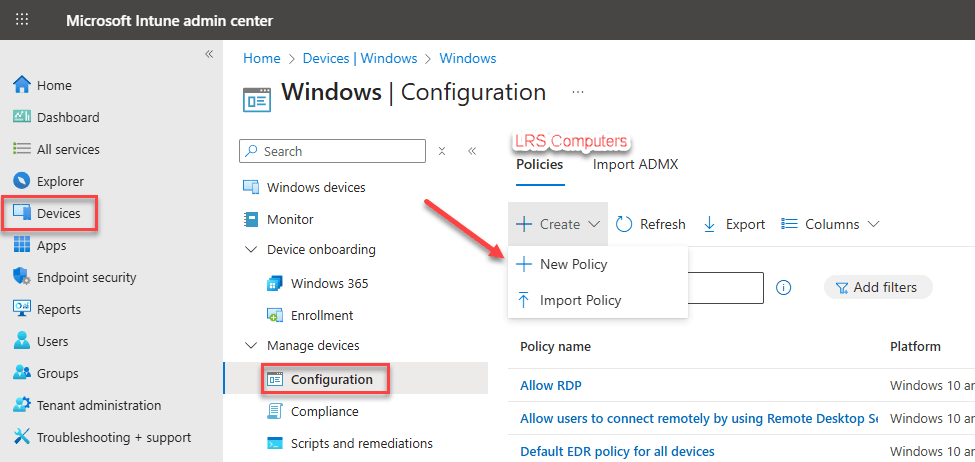
Log into the Intune Admin Portal (https://intune.microsoft.com/) > Devices > Windows > Configuration > Create > New Policy;
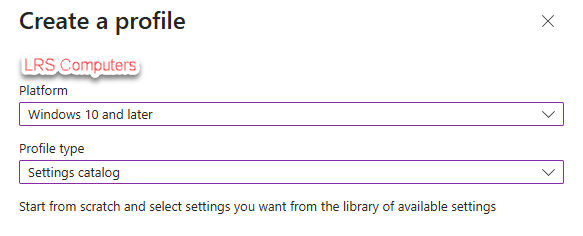
Platform: Windows 10 and later
Profile type: Settings catalog
Then click on Create.
Give your configuration profile a Name and description, if required, then Next.
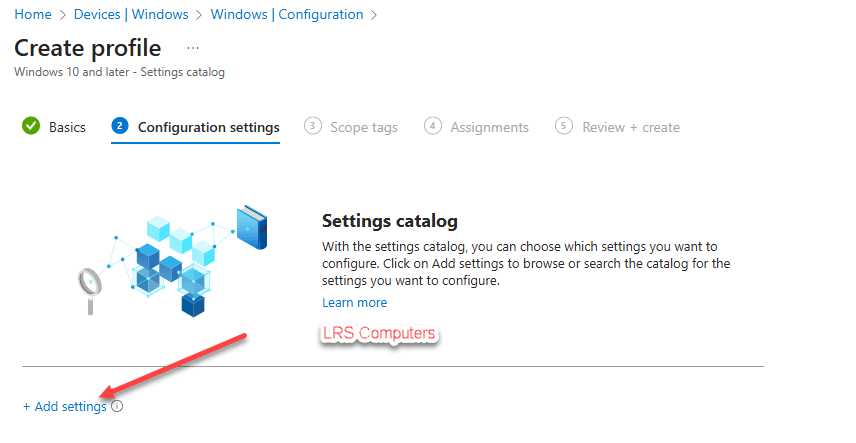
Click on Add Settings;
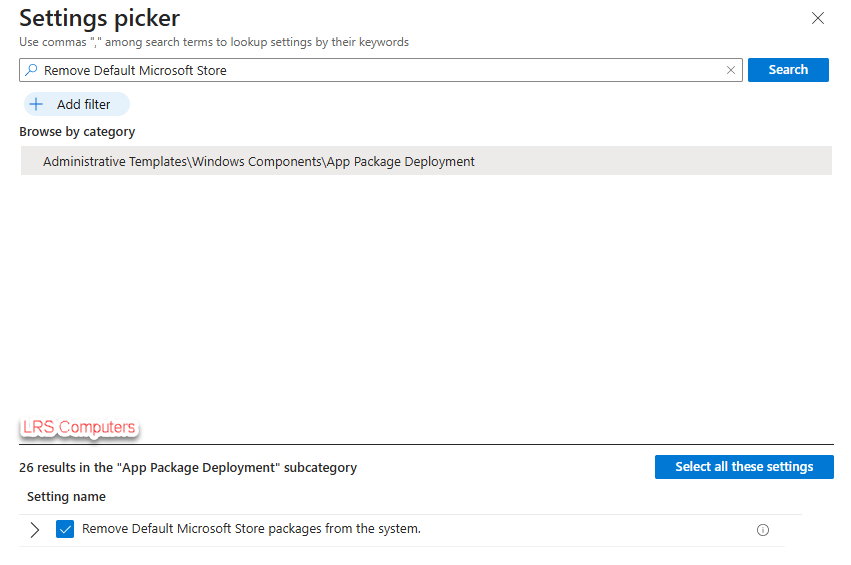
Search for Remove Default Microsoft Store or search through the categories (Administrative Templates\Windows Components\App package deployment) and we are looking for Remove Default Microsoft Store packages from the system, then tick the box
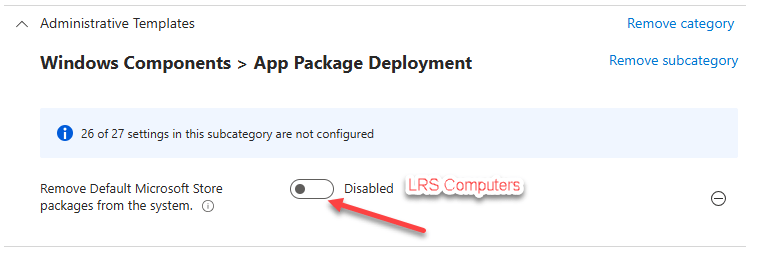
Then change the option from Disabled to Enabled by using the slider;
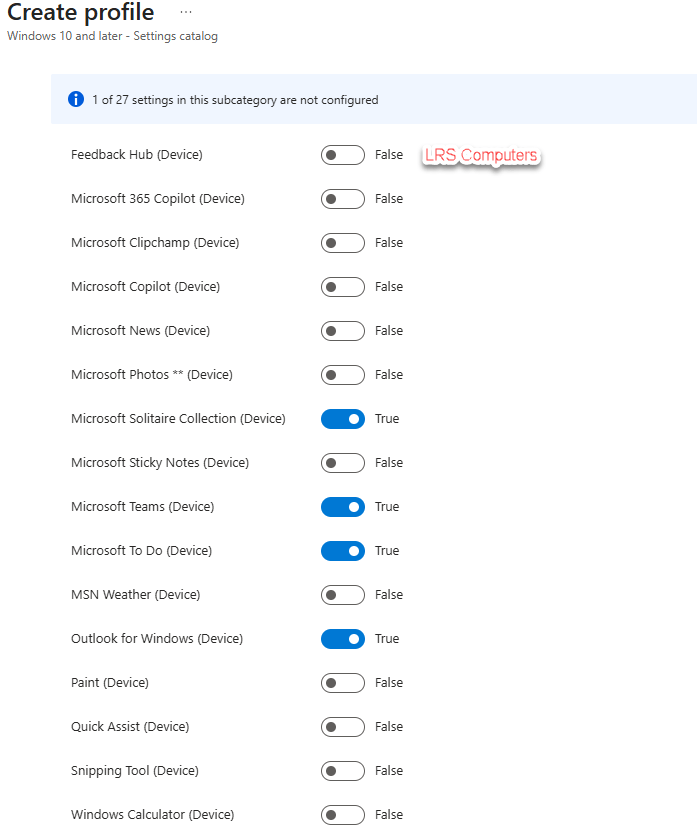
And now go through the list and select the apps you want to remove, depending on your business requirements you may want to remove them all or a certain few. Once you selected the Apps, click on Next. For example;
Under Scope Tags, I tend to leave this at default.
Under Assignments, add the groups or devices you want this to be pushed out to. You may want to select All Devices, then Next.
Then review your settings, if you’re happy click on Create and wait for your devices to sync the new configuration profile.
Please note, your devices must be running Windows 11 Enterprise and Education 25H2.
 LRS Computers