
When purchasing a new Windows computer from a manufacturer, mainly Dell – we have noticed that they like to install different language versions of Microsoft 365, and Microsoft OneNote.
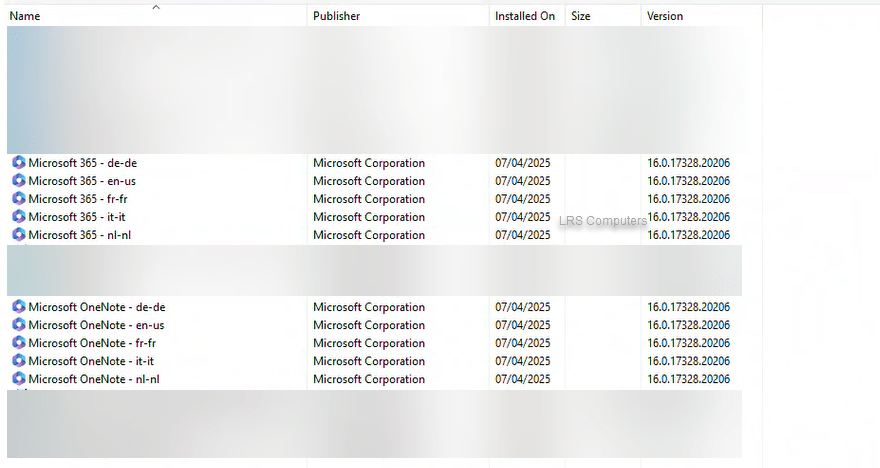
The above can be totally fine, but as premade computers from a manufacturer – they are often packed with bloatware and unnecessary applications.
As I mainly deal with computers for businesses and clients who have their Microsoft 365 subscription, we much prefer to uninstall the above and install a fresh copy of Microsoft 365 (Office) directly from their account / subscription.
We can uninstall directly from Control Panel, but each one can take 2-3 minutes.
In this post, I will show you how I uninstall all the above with a few clicks.
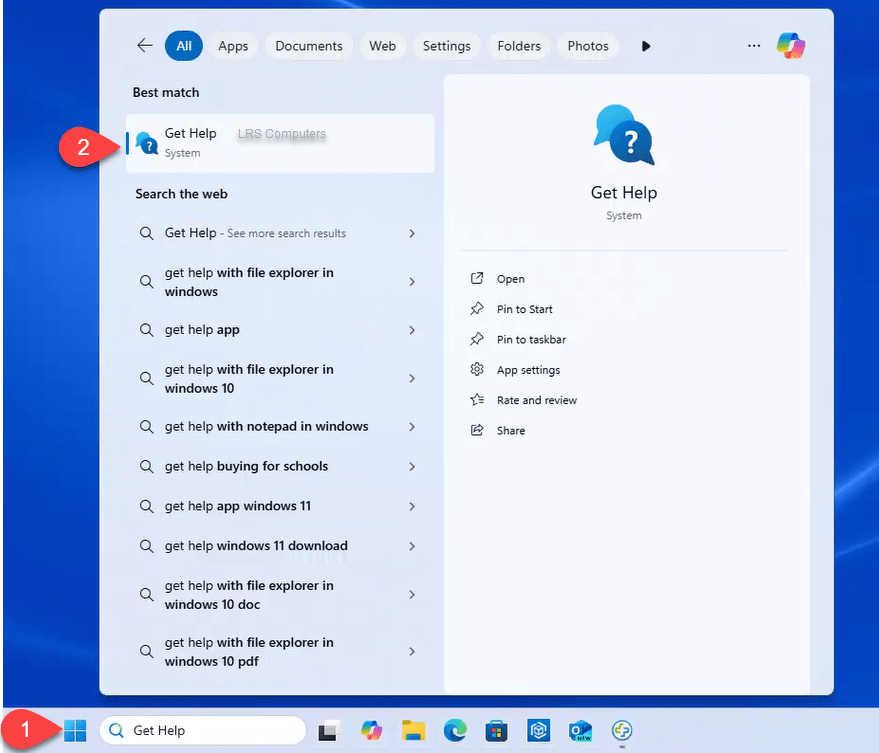
Firstly, click on the Start Menu and type in Get Help > then open Get Help
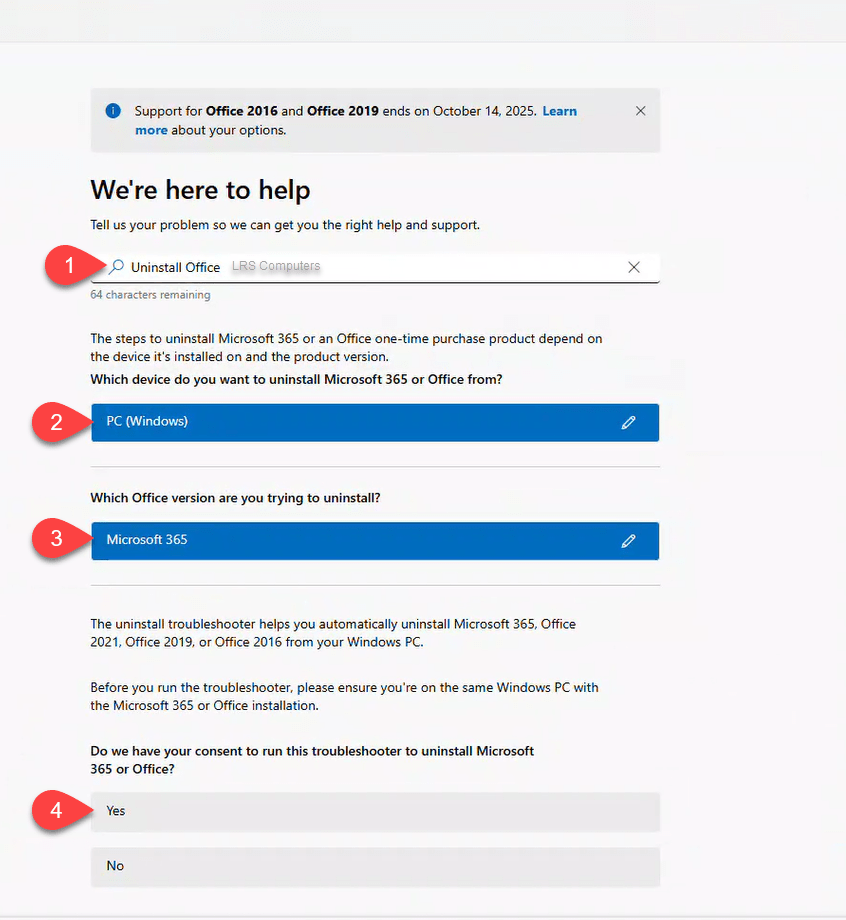
Once Get Help open, type in Uninstall Office, then follow the prompts, so in this case;
Which device do you want to uninstall Microsoft 365 or Office from? PC (Windows)
Which Office version are you trying to uninstall? Microsoft 365
Do we have your consent to run this troubleshooter to uninstall Microsoft 365 or Office? Yes
Once you click on Yes on the final question, it will start Uninstalling;
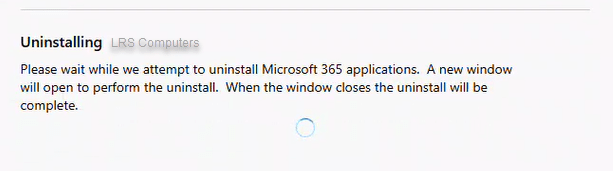
Shortly after you see it uninstalling, a PowerShell Window will pop up, don’t be alarmed and it will notify you that Running Office Uninstall. This may take a few minutes…
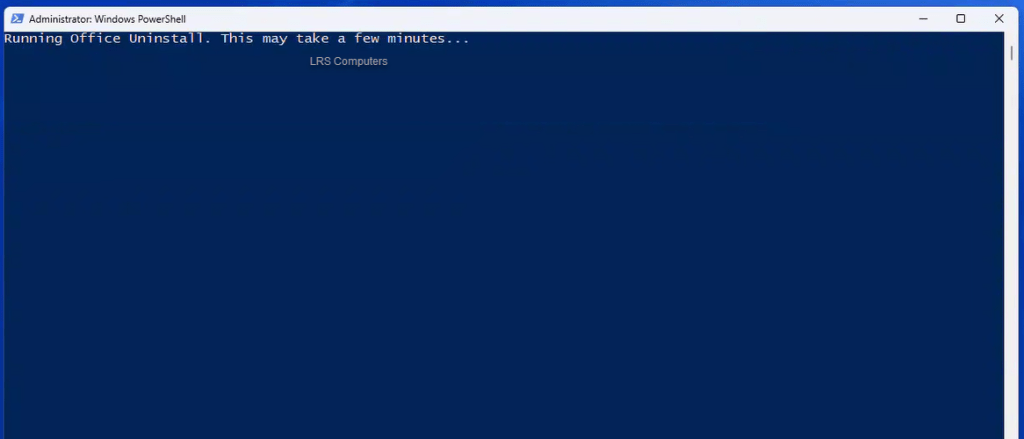
The above can vary; I’ve seen some devices do the above in 5 minutes, and others in 20 minutes
You will be notified that Office Uninstall completed successfully.
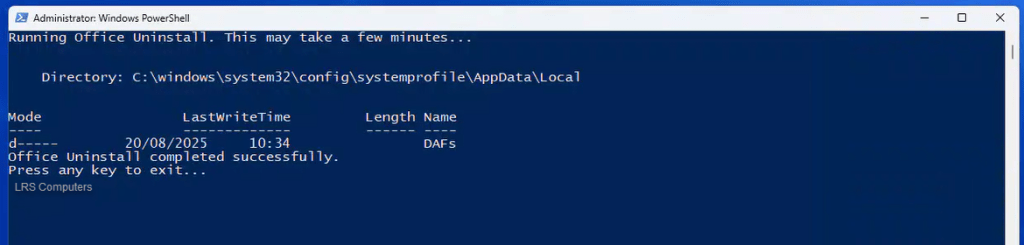
Press any key on your keyboard will now close the PowerShell Window.
Go back to Control Panel, refresh the Programs, and all the different versions of Microsoft 365 and OneNote will be removed.
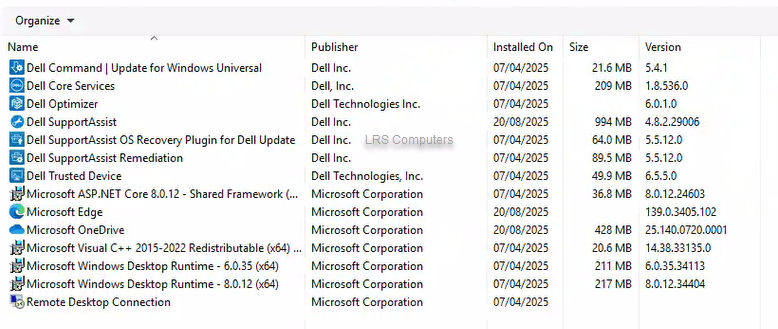
I would recommend doing a restart, just to finish up any background tasks.
 LRS Computers