
A while back, I created a post on how to use Get Help to uninstall the pre-installed Microsoft 365 applications from your new device. As previously mentioned – When purchasing a new Windows computer from a manufacturer, mainly Dell – we have noticed that they like to install different language versions of Microsoft 365, and Microsoft OneNote.
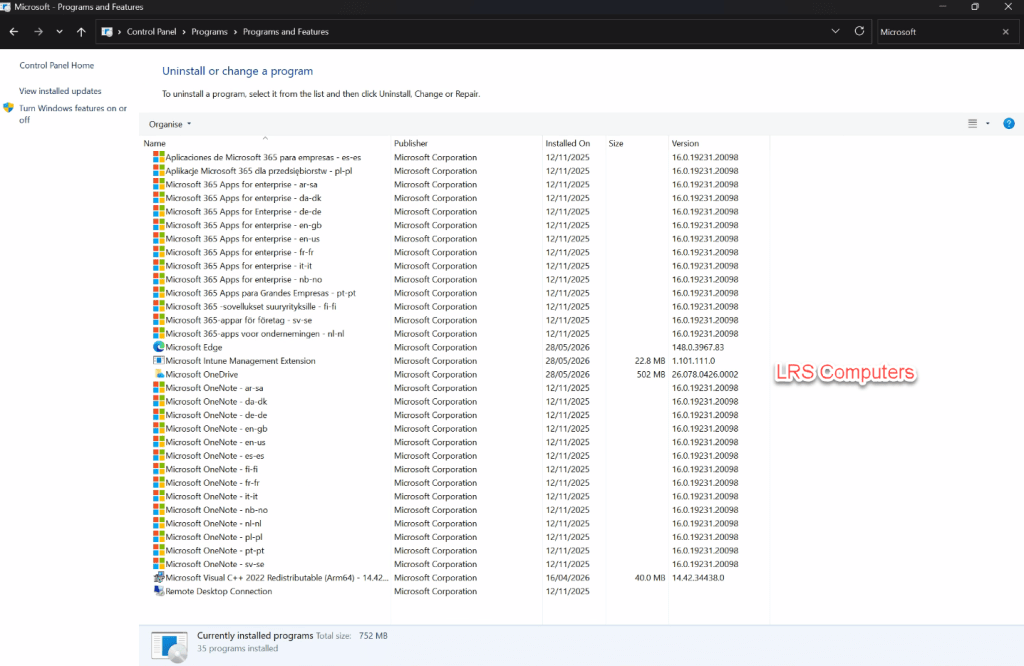
As I mainly deal with computers for businesses and clients who have their Microsoft 365 subscription, we much prefer to uninstall the above and install a fresh copy of Microsoft 365 (Office) directly from their account / subscription.
We can uninstall directly from Control Panel, but each one can take 2-3 minutes, and requires manual intervention each time.
Recently, the Get Help method has been very hit-and-miss. This is a different method using the Deployment Tool and an XML File to quickly uninstall it.
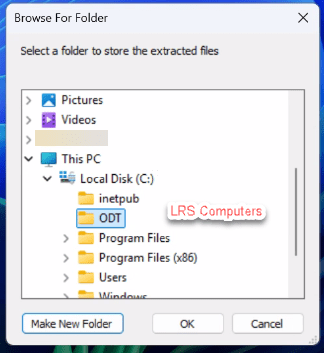
Firstly, let’s download the Deployment Tool from Microsoft and extract into a folder called ODT on the C Drive
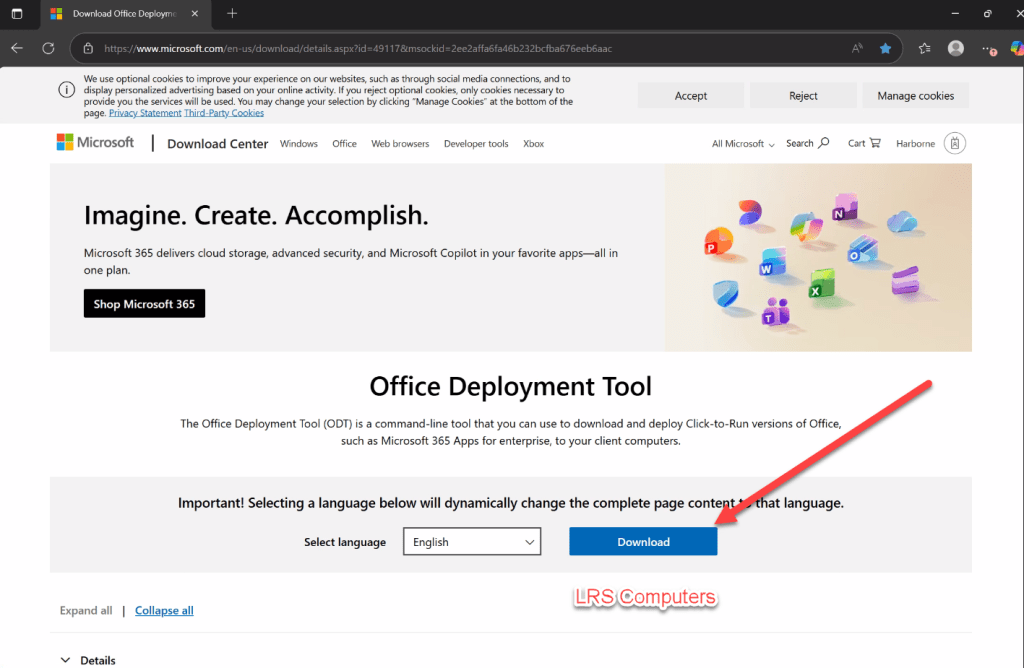
Deployment Tool – Download Office Deployment Tool from Official Microsoft Download Center
Run Deployment Tool, and extract into ODT Folder;
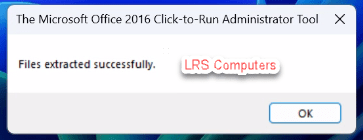
Once extracted, you should get a Window saying – Files extracted successfully;
Open up Notepad, and copy & paste the following;
<Configuration> <Remove All="TRUE" /> <Display Level="None" AcceptEULA="TRUE" /></Configuration>
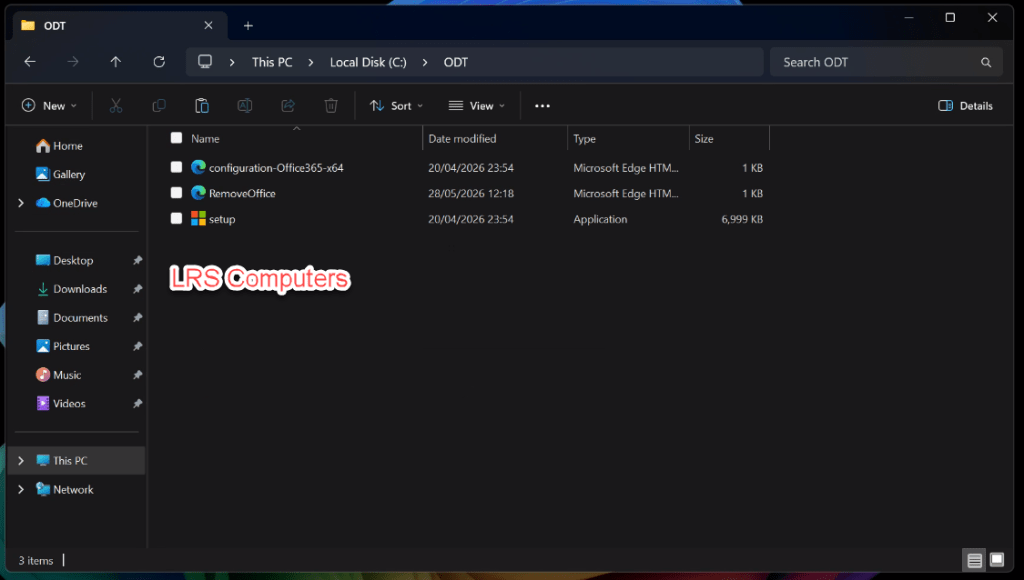
Then save the file as RemoveOffice.xml in the same folder (ODT) on the C Drive. You should now have the following files within ODT;
Open CMD as Administrator, and go into that directory;
cd C:\ODT
Then run the following;
.\setup.exe /configure RemoveOffice.xml
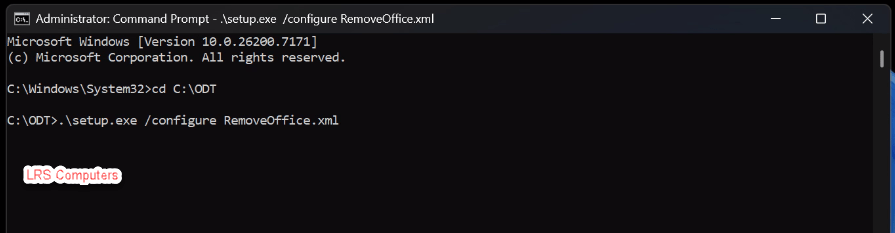
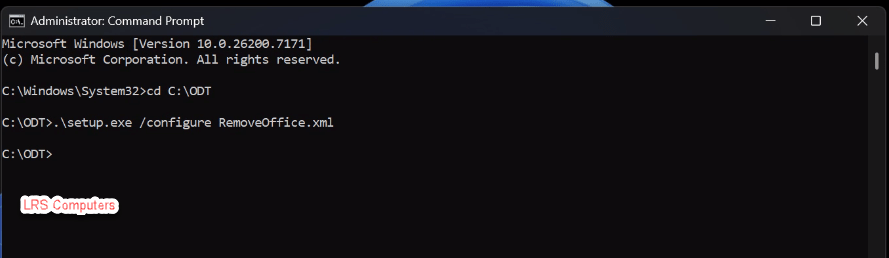
And then wait for it to finish, it can take around 5-10 minutes, you will know once it’s done because the command prompt will go to a new line;
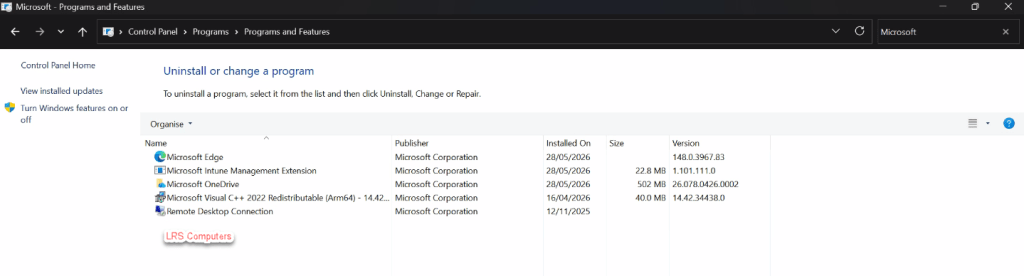
Once you see it go to a new line, head back over to Control Panel and Refresh – you should notice all the Microsoft 365 and OneNote(s) have now gone;
 LRS Computers